


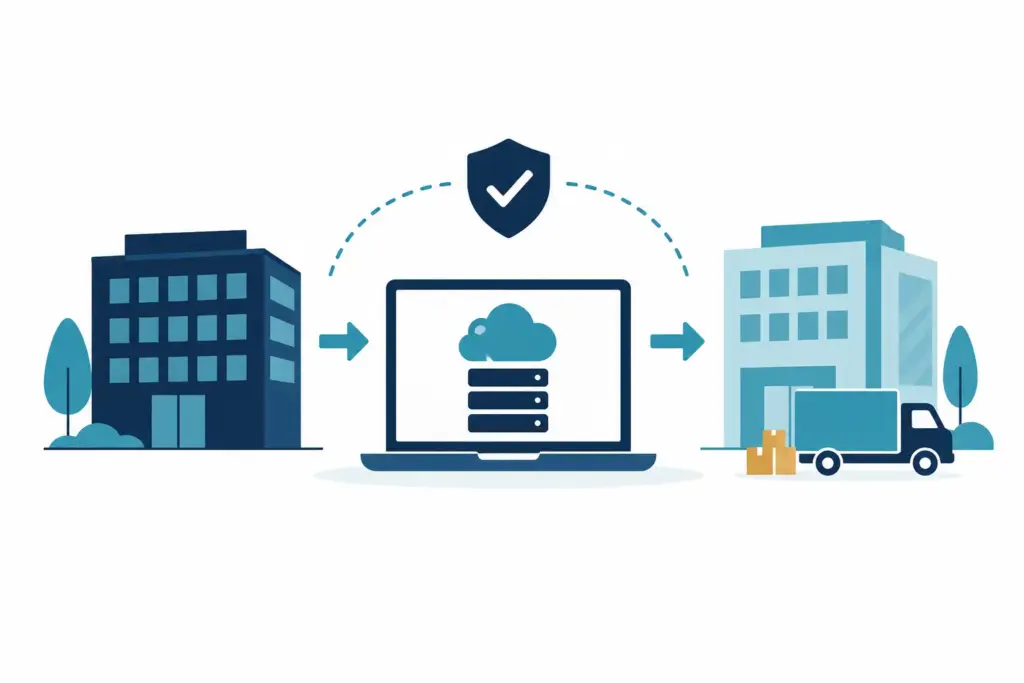
Moving office is often treated as a property project until the first person arrives without Wi-Fi, access to files or a working phone. Good office relocation IT planning gives the technology side of the move the same attention as furniture, keys and signage, so the new office is ready for work rather than a queue of small frustrations.
For a small business, the aim is not a technically impressive move. It is a calm first day where people can sign in, take calls, print when needed and carry on serving customers. Most disruption comes from a handful of overlooked dependencies, not from anything especially complicated.
Start office relocation IT planning early
IT decisions are easiest to make before contracts are finalised and fit-out work begins. As soon as a potential office is under consideration, check what connectivity is available, where equipment can sit and whether the layout supports how your team works.
Internet availability deserves early attention. Two buildings on the same street can have very different options, installation times and costs. A good connection may take longer to arrange than desks, decorating or removal vans, especially if new cabling is needed. It is worth confirming the likely activation date before setting the moving date in stone.
Also consider resilience. If the internet service is delayed or has a fault during the first week, can key staff work through a temporary mobile connection or from another location? The right answer depends on how dependent your business is on cloud systems, calls and online customer service. It does not always mean paying for two permanent connections, but it does mean having a sensible fallback.
Map what actually needs to move
A move is a useful moment to take stock, but it should not become an open-ended technology project. Begin with a straightforward view of what staff use each day: laptops and desktops, screens, printers, phones, meeting room equipment, network hardware and any specialist devices.
Then look at the less visible parts. This includes internet services, Wi-Fi, Microsoft 365 accounts, shared files, backups, door entry systems, CCTV, alarms and supplier contacts. Some of these may be managed by the landlord or building manager, while others remain your responsibility. Clear ownership prevents the classic problem of several people assuming someone else has arranged it.
It also helps to identify what should not move. An ageing printer that causes regular problems may not be worth reinstalling. A cupboard of unused cables and retired equipment rarely needs a new home. Decisions like these are easier when made calmly a few weeks ahead, rather than while a removals team is waiting.
Match the layout to the way people work
An office plan affects IT more than it first appears. Desk positions determine where power and network points are needed. Meeting rooms need reliable coverage for video calls. Reception staff may need a phone, visitor system or a private connection for handling customer information.
Wi-Fi is often the main concern. A small office may work perfectly with simple coverage, while a building with thick walls, several floors or separated rooms may need more planning. The goal is reliable service where people genuinely work, not just a strong signal beside the comms cupboard.
Think about practical details too. Network equipment should be secure, ventilated and accessible to the people who need to support it. It should not be balanced behind a reception desk or squeezed into a locked cupboard with no power socket. Small choices here save avoidable call-outs later.
Protect continuity during the move
The best moving plan separates the work that can happen beforehand from the work that has to happen on moving day. Accounts, access permissions, cloud files and most software should be checked in advance. Equipment can be labelled, documented and prepared before it is unplugged.
Moving day itself should focus on physical tasks: disconnecting, transporting, reconnecting and testing equipment. If possible, avoid scheduling a major software change, a new phone system or a company-wide password reset at the same time. Each may be manageable alone. Together, they create too many variables when people simply need to get online.
Backups need a quick check before anything is moved. This is not because an office relocation is inherently risky, but because it is reassuring to know important data is protected and can be recovered if a device is damaged, misplaced or unavailable longer than expected. Cloud-based systems reduce the amount that travels in a box, but they do not remove the need to know what is backed up and where it lives.
For teams that cannot stop completely, plan a short period of overlap. That could mean keeping the old connection live for a few extra days, arranging remote working for selected staff, or using mobile devices for essential calls. The right approach depends on budget, lease timings and the cost of interruption to your business.
Give people a simple first-day plan
Staff do not need a technical briefing. They do need to know what will be different. Let them know when they can access the new office, whether they should bring laptops home before the move, how they will join the Wi-Fi and who to contact if something is not working.
A short first-day checklist is usually enough: sign in, connect to Wi-Fi, open key systems, make a test call if relevant and check printing. Ask a few people from different roles to test rather than relying on a single device. The person using accounting software, the colleague taking customer calls and the team member in the meeting room may each spot a different issue.
It is sensible to allow a little settling time. Printers may need their final settings, meeting room screens may need adjusting and staff may find Wi-Fi dead spots that were not obvious during an empty-office test. These are normal finishing jobs, not signs that the move has gone wrong.
Keep security in place while things change
Office moves involve visitors, contractors, packed equipment and changed routines. That makes clear handling more useful than complicated security measures. Label equipment carefully, keep an inventory of anything valuable and avoid leaving laptops or network devices unattended in open areas.
Review access when the new office opens. Former staff, old contractors or suppliers may no longer need access to systems, shared folders or the building. Equally, new starters or relocated staff may need permissions they did not have before. This is a good opportunity to make access reflect current roles, without turning it into a major audit.
Physical security also matters. Check who holds keys, fobs and alarm codes, and make sure network equipment is not available to anyone passing through the office. If your business uses cloud services, confirm that multi-factor authentication still works for staff changing phones or working from temporary locations.
Decide who is coordinating the details
An office manager or director can coordinate the wider move, but IT tasks benefit from one named person who can bring together the landlord, internet provider, fit-out team, removals company and IT support. They do not need to understand every technical detail. They simply need a clear list of decisions, dates and owners.
A managed IT partner can help turn this into a practical plan, check the new site before move-in and be available for the setup and early settling period. For smaller teams, that outside coordination often removes pressure from the person already organising leases, furniture and staff communications.
The useful question is not whether every detail is perfect before you move. It is whether the things your business relies on have an owner, a date and a fallback. With that in place, the new office can feel like a fresh start rather than a week spent chasing IT gremlins.