


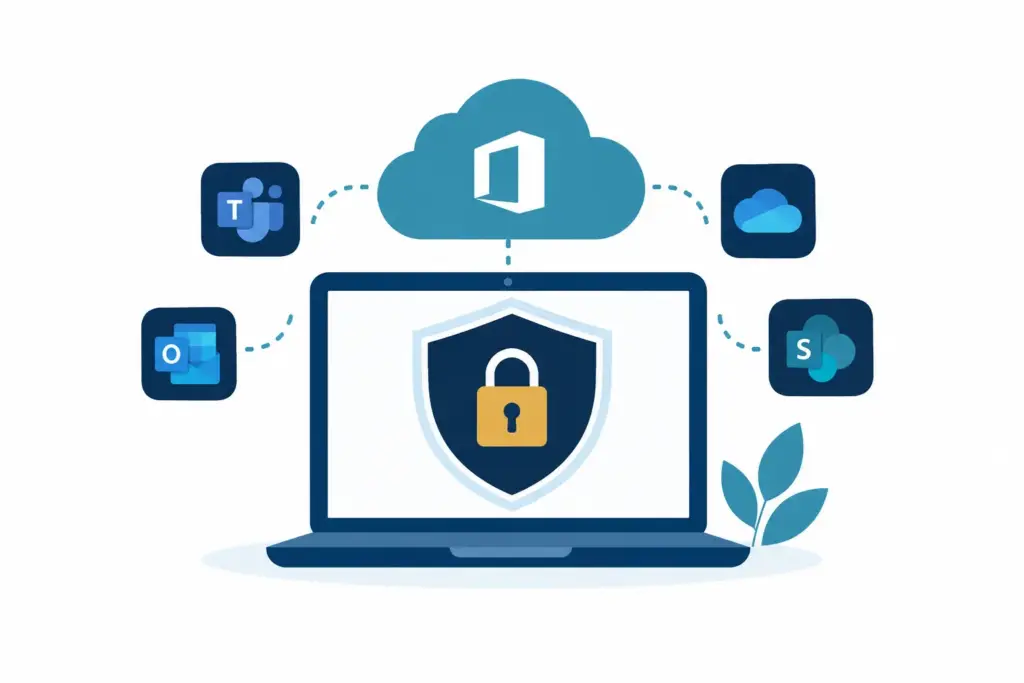
A password alone is no longer a sensible front door to a business system. That is the practical thread running through current Microsoft 365 security trends. For small teams, the useful changes are not about adding more technology. They are about making everyday access, email and file sharing less dependent on one person getting every decision right.
Microsoft 365 already includes a great deal of security capability. The challenge is deciding which parts genuinely improve day-to-day protection without turning ordinary work into a chore. For most businesses, a few well-managed controls will matter far more than a long list of settings left half-finished.
Microsoft 365 security trends are becoming identity-led
The biggest change is the focus on identity. In plain terms, Microsoft is increasingly checking whether the person signing in is likely to be the right person, rather than accepting a password as proof on its own.
Multi-factor authentication remains central to this. It adds a second check when someone signs in, usually through an authentication app or a trusted device. It is not new, but it is now the expected baseline for business accounts, particularly for administrators and anyone with access to financial, client or sensitive information.
The direction of travel is towards stronger sign-in methods that are less vulnerable to fake login pages and repeated approval prompts. Passkeys, device-based sign-in and number matching in authenticator apps are examples. A business does not need to chase every new option. What matters is moving away from older methods that rely solely on passwords, text messages or easily approved notifications.
There is a trade-off. More sign-in checks can frustrate staff if they appear at the wrong time or on every device. A sensible setup recognises familiar, managed devices while asking for more proof when a sign-in looks unusual. The goal is not to make access difficult. It is to make an unexpected login harder to complete quietly.
The device matters almost as much as the account
A valid sign-in from an unpatched personal computer is not the same as a sign-in from a company laptop that is encrypted, updated and protected. This is why device health is becoming a more visible part of Microsoft 365 security.
For a small business, that does not have to mean strict control over every phone and tablet. It means being clear about which devices can access company email and files, and under what conditions. A staff member may be able to read email on a mobile phone, for example, while downloads or access to more sensitive files are limited to managed computers.
This approach is often called conditional access. The name sounds more complicated than the idea. Access is allowed when the right conditions are met: the person has completed multi-factor authentication, the device is known, and the sign-in does not raise obvious concerns.
The exact balance depends on how your team works. A five-person office using company-issued laptops can apply tighter rules than a business with travelling consultants, contractors and a mixture of devices. The important thing is to make a conscious choice rather than allowing every device the same level of access by default.
Email security is now about people and process
Email remains one of the most common routes for mistakes, but the issue is rarely a cartoonish scam full of spelling errors. More often, it is a convincing message that appears to come from a supplier, director or colleague and arrives during a busy afternoon.
Microsoft 365 continues to improve its filtering for unwanted and suspicious email. That is useful, but it should sit alongside a few calm working habits. Payment changes should be checked through a known contact method. Unexpected requests to share files or approve a sign-in should be treated with care. Staff need to know that asking a quick question is preferable to guessing.
The trend here is not to bombard people with security training. It is to make short, relevant reminders part of normal business life. A simple explanation of what a suspicious login prompt looks like is more useful than an annual slide deck that everyone tries to finish between meetings.
Good email protection also includes the less visible basics: properly configured sending records, sensible anti-phishing rules and a process for reviewing messages that were blocked or quarantined. These controls reduce noise as well as risk. Nobody wants a ticket robot creating more work because a genuine supplier email was trapped unnecessarily.
Sharing files needs clearer boundaries
Microsoft Teams, SharePoint and OneDrive make it easy to work with clients, suppliers and colleagues outside the office. That convenience is valuable. It can also mean that a document shared for one project stays available longer than intended, or is forwarded to someone outside the original group.
Current Microsoft 365 security trends put more attention on how data is shared, not just where it is stored. For many SMEs, the practical answer is straightforward: set a sensible default for sharing, use named people rather than anonymous links where possible, and review access when a project ends or a staff member leaves.
Not every file needs the same treatment. A public brochure is different from payroll information or a client contract. The useful question is whether the sharing method matches the information involved. Small teams benefit from a few clear rules more than an elaborate classification scheme that nobody has time to maintain.
It is also worth checking who has administrative control over shared sites and Teams. When ownership is unclear, routine tasks such as removing access can become surprisingly awkward. Clear ownership keeps the system tidy and avoids the familiar problem of an old project folder becoming everyone’s responsibility and nobody’s job.
Backups are still a separate decision
Microsoft provides resilience for its own platform, but that is not quite the same as having a business-ready copy of your data. Deleted files, accidental changes, retention limits and account issues all raise different questions from a service outage.
This is why backup remains relevant alongside Microsoft 365’s built-in protections. The right arrangement depends on how much email, SharePoint and OneDrive data your business relies on, how long you need to retain it, and how quickly you would need a usable copy after an error.
The useful trend is a move away from assuming that cloud software removes all responsibility. It reduces a great deal of infrastructure work, which is one reason Microsoft 365 is so useful. But businesses still need ownership of their users, permissions, data retention and recovery decisions.
What to prioritise without making work harder
If your Microsoft 365 setup has grown gradually, there is no need to treat it as a major project. Start by checking the foundations. Confirm that multi-factor authentication is active for everyone, especially administrators. Review old accounts and shared mailboxes. Check that devices receiving company data have appropriate protection and updates.
Then look at the places where information leaves the business: email forwarding, external file sharing and departing staff access. These are ordinary operational details, not signs that anything has gone wrong. They are simply the areas that become harder to untangle when nobody has looked at them for a while.
Finally, assign ownership. A director, operations manager or outsourced IT partner should know who reviews alerts, approves new access, removes old access and checks that backups can be restored. The person does not need to perform every task personally. They just need to ensure the task has a home.
For smaller businesses, the best security trend is not a new dashboard or another alert. It is a quieter arrangement in which the basics are looked after consistently, staff can get on with their work, and small IT gremlins are dealt with before they become a distraction.