


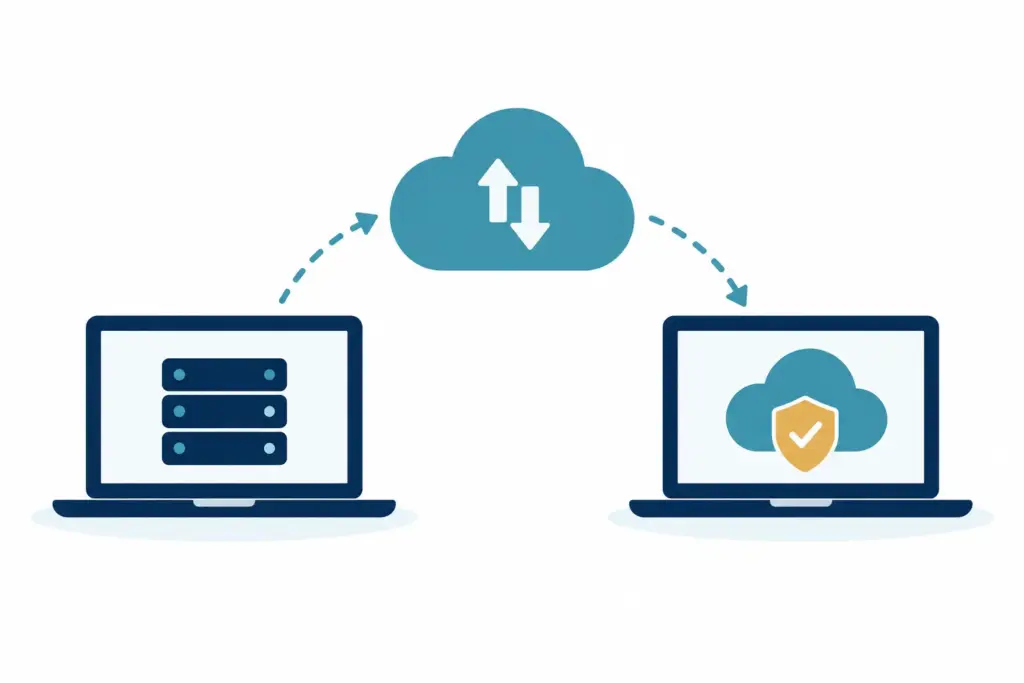
A migration can sound like a major upheaval, particularly when your team relies on email, shared files, business software and familiar devices to get through the day. In practice, what happens during IT migration should be a controlled change from one working setup to another, with careful checks before anyone’s normal routine is affected.
For a small business, the aim is rarely to introduce something flashy. It is to move services, data or devices safely, reduce future IT niggles and leave people able to work as usual. The better the planning, the less visible the migration feels to the people using the systems.
What happens during an IT migration?
An IT migration is the process of moving a business from one technology setup to another. That might mean moving email and files into Microsoft 365, replacing an ageing server, changing internet providers, moving systems into Azure, setting up new laptops, or bringing several separate systems under one managed arrangement.
Every migration is different, but the work usually follows the same pattern: understand what is in place, plan the move, prepare the new environment, transfer the right information, switch people across, then check that everything works as expected.
The actual transfer is only one part of the job. Much of the value is in the quiet work around it: finding old accounts, confirming who needs access, checking backups, planning around busy periods and making sure there is a sensible way back if a change does not go to plan.
It starts with a clear picture of what you have
Before anything is moved, someone needs to understand how your business currently works. This is not an exercise in producing paperwork for its own sake. It avoids the common surprise of discovering that an important shared inbox, spreadsheet, application or old laptop was more critical than anyone realised.
A good assessment looks at the services people use each day, the data held in them, the devices involved and the people who need access. It also considers connections between systems. For example, a finance package may send reports through a particular mailbox, or a website contact form may rely on an email account that no one logs into directly.
This stage is also where practical decisions are made. Some older files may need moving in full. Others may be better archived securely, rather than carried into a new system where they will only add clutter. The right answer depends on how often information is needed, how long it must be retained and whether it is still useful to the business.
Planning is where disruption is avoided
Once the current setup is understood, the migration can be planned around the business rather than the other way round. A small team may be able to move during a quieter afternoon. A company that takes customer orders all day may need the main change completed outside working hours.
The plan should set out what is moving, when each part will happen, who needs to know, and what support will be available afterwards. It should also make clear which small changes employees might notice. They may need to sign in again on a laptop, use a new link for a shared file area or approve an authenticator prompt on their mobile phone.
Clear communication matters here. People do not need a technical briefing. They need to know whether anything will change, when it will change and what to do if something looks unfamiliar. That alone prevents many avoidable support requests and stops minor IT gremlins becoming a distraction.
The new environment is prepared before the switch
A reliable migration does not begin by switching off the old system. The new setup is prepared first, then checked. User accounts are created, access permissions are reviewed, security settings are applied and backup arrangements are confirmed where relevant.
For Microsoft 365 migrations, this might include setting up mailboxes, Teams, SharePoint or OneDrive access, and ensuring staff can use multi-factor authentication without unnecessary friction. For device migrations, it may mean preparing new laptops with the required applications, updates and security settings before they reach users.
This is also a useful moment to tidy up access. Staff who have changed roles may no longer need access to every folder or mailbox they could previously reach. Former employees’ accounts can be dealt with properly. The goal is not to make day-to-day work harder. It is to make access match the way the business operates now.
Data and services move in stages
The migration itself may happen in one go or in stages. Email, files, user accounts, software settings and devices do not always need to move at the same time. In fact, splitting a larger change into sensible parts can reduce risk and make problems easier to spot.
Email migrations often involve copying existing messages first, then making a final change so new messages arrive in the new mailbox. File migrations may take place in the background before a shared folder is made available to staff. New devices can be issued gradually, allowing people to settle in without turning one morning into a queue of login questions.
There is a trade-off. A single cutover can be quicker and easier to explain, but it concentrates the change into a shorter period. A phased migration spreads the work and gives more opportunity to adjust, but may mean two systems exist side by side briefly. The best approach depends on the size of the team, the systems involved and how much downtime the business can reasonably accommodate.
The changeover is checked carefully
When the planned switch happens, the first priority is not simply whether the new system is online. It is whether people can do their actual work. Can they send and receive email? Can they find the files they need? Can they access the line-of-business software, print documents and use the right shared mailboxes?
Checks should cover typical tasks for different roles, not just an administrator’s account. A director may need secure access while travelling. An office manager may rely on shared calendars. A member of the team may need a particular template or folder every day. Testing these real situations catches gaps that technical checks alone can miss.
The old system is usually kept available for an agreed period where practical. This provides reassurance while the new arrangement proves itself. It is not about expecting trouble. It is a sensible safety net while final data checks and small adjustments are completed.
The days after a migration matter too
Most migrations have a settling-in period. The major work may be complete, but small questions often emerge when people return to their usual tasks. A saved shortcut may point to an old location. A mobile phone may need a mail account refreshed. Someone may discover that a folder they use once a month is not where they expected it to be.
These are normal finishing tasks, not signs that the migration has failed. What matters is that there is clear ownership for resolving them calmly and that nobody is left guessing whether an issue is theirs to fix.
This is also the right time to confirm that the business is getting the intended benefit. If the move was designed to improve remote working, staff should be able to access what they need without workarounds. If it was intended to improve security, the new protections should be working without creating daily frustration. A migration is successful when the technology supports the business more quietly than it did before.
What your team usually needs to do
For most employees, the involvement is fairly limited. They may be asked to keep their laptop on at a certain time, sign in to a new account, approve a security prompt or check that they can access their usual files. A few key people may be asked to test particular systems because they know how those systems are used in real life.
Business owners and managers are usually most helpful when they can confirm priorities. Which services cannot be unavailable during trading hours? Which people need special access? Are there busy dates, payroll runs, customer deadlines or planned leave to work around? These details help shape a plan that fits the business rather than a generic technical timetable.
A calm migration should feel uneventful
No migration is entirely invisible. There may be a new sign-in screen, a short period of adjustment or the odd question during the first few days. But it should not leave your team unable to work or unsure where their information has gone.
The reassuring part is that most of the risk can be reduced before the change begins. Good discovery, realistic scheduling, tested backups and clear communication make a far greater difference than a complicated technical solution. For small businesses, the best IT migration is usually the one that lets everyone get back to work and forget it happened.